Laptop Repair Security Readiness Checker
Check the steps you've already taken to secure your device. We'll calculate your current security level and suggest the best strategy for your specific repair.
Your Pre-Repair Checklist
Security Status
Quick Safety Checklist
- Back up all files to an external drive or cloud.
- Log out of all accounts and browser sessions.
- Create a separate 'Guest' account for the technician.
- Remove your SIM card or SD cards.
- Document the physical condition of the device with photos.
The real risks of professional repair
When you hand over a laptop, you aren't just giving them a piece of plastic and silicon; you're giving them a gateway to your identity. The most common fear is data theft, but the risks are broader. There is the possibility of 'part swapping,' where a high-end SSD (Solid State Drive) is replaced with a cheaper, older version of the same capacity. Then there's the risk of accidental data loss if a technician decides to reinstall the Operating System to 'clear out bugs' without asking you first.
Most technicians only need access to the hardware or a basic system check to verify a fix. They don't need to see your tax returns from 2023 or your private messages. If a shop asks for your primary admin password immediately, that's a red flag. A pro should be able to test most hardware functions using a guest profile or a bootable diagnostic tool.
How to lock down your data before the visit
The absolute gold standard for safety is laptop repair safety through encryption. If you use BitLocker on Windows or FileVault on macOS, your data is scrambled. Even if a technician pulls the drive out and plugs it into another machine, they can't read your files without the recovery key. If you aren't using these, now is the time to turn them on.
For those who don't have encryption, creating a temporary user account is a lifesaver. Go into your settings and create a local account named 'Repair'. This allows the technician to test the Wi-Fi, keyboard, and screen without ever seeing your bookmarks or logged-in accounts. It keeps your primary profile locked behind your password while giving them the tools they need to do their job.
| Protection Method | Security Level | Effort Required | Best For |
|---|---|---|---|
| No Action | Low | None | Non-critical devices |
| Guest Account | Medium | Low | Quick hardware fixes |
| Full Encryption | High | Medium | Sensitive work/personal data |
| Drive Removal | Maximum | High | Screen/Keyboard replacements |

Knowing when to remove your hard drive
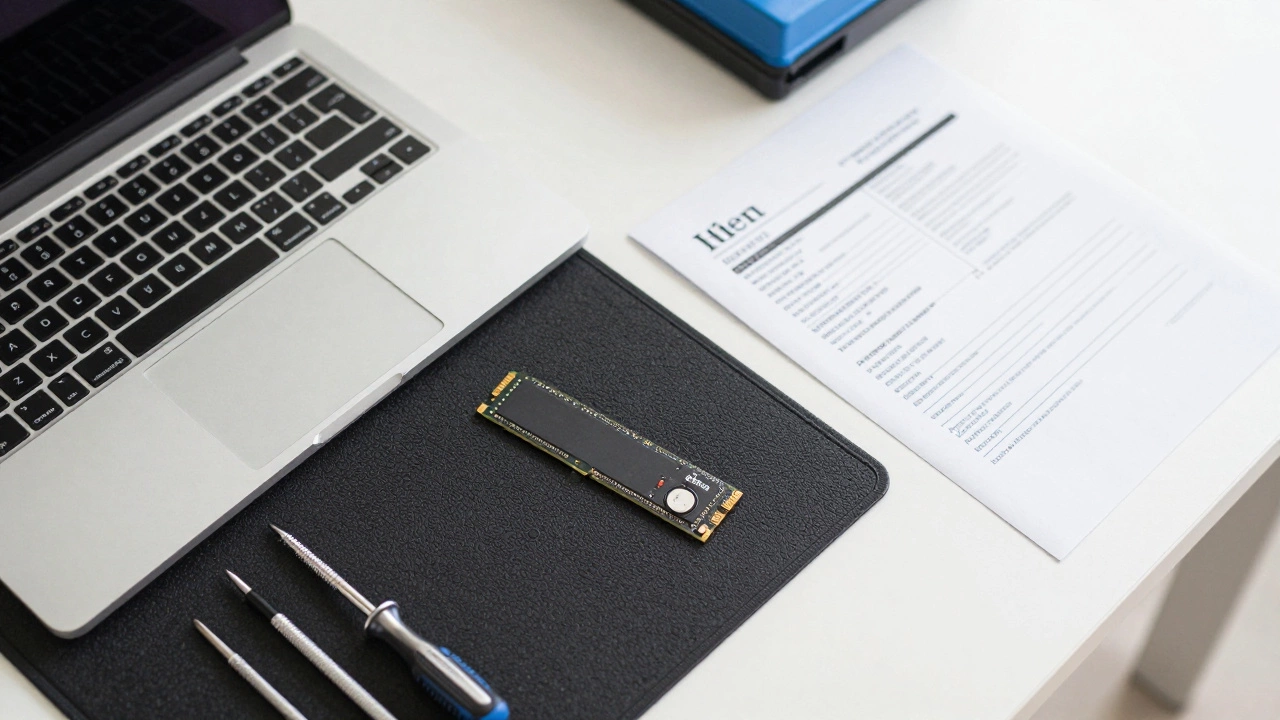
If you're getting a screen replaced or a hinge fixed, the technician doesn't actually need your data. In these cases, the safest move is to remove the Hard Drive or M.2 NVMe drive entirely. If you're comfortable opening the back panel, just unscrew the drive and keep it in your pocket. If you can't do it yourself, ask the shop to remove it in front of you and set it aside.
This completely eliminates the risk of data snooping. The only downside is that they can't test if the laptop boots into the OS after the repair. However, you can do that yourself once you get the machine back and plug the drive back in. For a simple battery swap, there is zero reason for a technician to have access to your files.
Spotting a trustworthy repair shop
Not all shops are created equal. A reputable business will have a clear intake process. They should provide a signed receipt that lists the serial number of your device and the specific problems you're reporting. If they refuse to give you a written estimate or a tracking number for your device, take your laptop and leave.
Check if they are Authorized Service Providers. While independent shops are often cheaper and faster, authorized centers have a direct line to the manufacturer for genuine parts. An independent shop isn't necessarily 'unsafe,' but they should be transparent about where they get their replacement parts. Ask if they use OEM (Original Equipment Manufacturer) parts or third-party clones.
What to do after you get your laptop back
The safety process doesn't end when you pay the bill. Before you leave the shop, boot the laptop up. Check that all your peripherals work-USB ports, webcam, and speakers. More importantly, check the system logs if you're tech-savvy to see if any strange software was installed. It's rare, but some unethical shops install remote access tools or bloatware to charge for 'optimization services' you didn't ask for.
Once home, change your main password if you had to provide it. If you gave them a recovery key for your encryption, generate a new one. Finally, run a full scan with a trusted antivirus program just to be sure no 'diagnostic tools' were left behind that could act as a backdoor into your system.
Can a technician access my files if I have a password?
Yes. Unless your drive is encrypted, a technician can simply remove the hard drive and plug it into another computer as an external drive. This bypasses your Windows or Mac login password entirely, giving them full access to every folder on the disk.
Is it safe to leave my laptop overnight at a shop?
Generally, yes, if it is a reputable shop with a secure storage area. However, the longer a device stays in a shop, the more time there is for potential mishandling. Always ensure you have a detailed intake form that proves the device was in your possession and what its condition was when you dropped it off.
What is the difference between OEM and third-party parts?
OEM parts are made by the original manufacturer (like Dell or Apple) and are guaranteed to fit and function perfectly. Third-party parts are made by other companies. While often cheaper, they can vary in quality. For batteries and screens, OEM is always safer to avoid overheating or color inaccuracy.
Should I back up my data if the laptop won't turn on?
If the machine is dead, you can't run a standard backup. In this case, tell the technician that your data is a priority. They can often perform a 'data recovery' by pulling the drive and copying files to a USB stick before they attempt any risky repairs like motherboard soldering.
How do I know if my parts were swapped?
You can use software tools like HWInfo or CPU-Z to check the specific model and serial numbers of your RAM and SSD before you take the laptop in. Compare these numbers when you get the device back. If the model number has changed to a cheaper brand, you have proof of part swapping.
Final thoughts on hardware trust
You don't need to be paranoid, but you should be prepared. Most repair techs are just people who love gadgets and want to get your machine running again. By using encryption, guest accounts, and basic documentation, you remove the temptation for bad actors and the opportunity for accidents. Your data is the most valuable part of your laptop-treat it that way.